 Prokoll
 English
 Svenska
 Norsk
Norsk Dansk
Dansk Suomi
Suomi Deutsch
 Français
 Nederlands
 Español
How Prokoll works
Prokoll turns a meeting into a transcript with who said what, and then into notes, without the meeting ever leaving your Mac. Here is what happens, step by step.
Everything written down for you
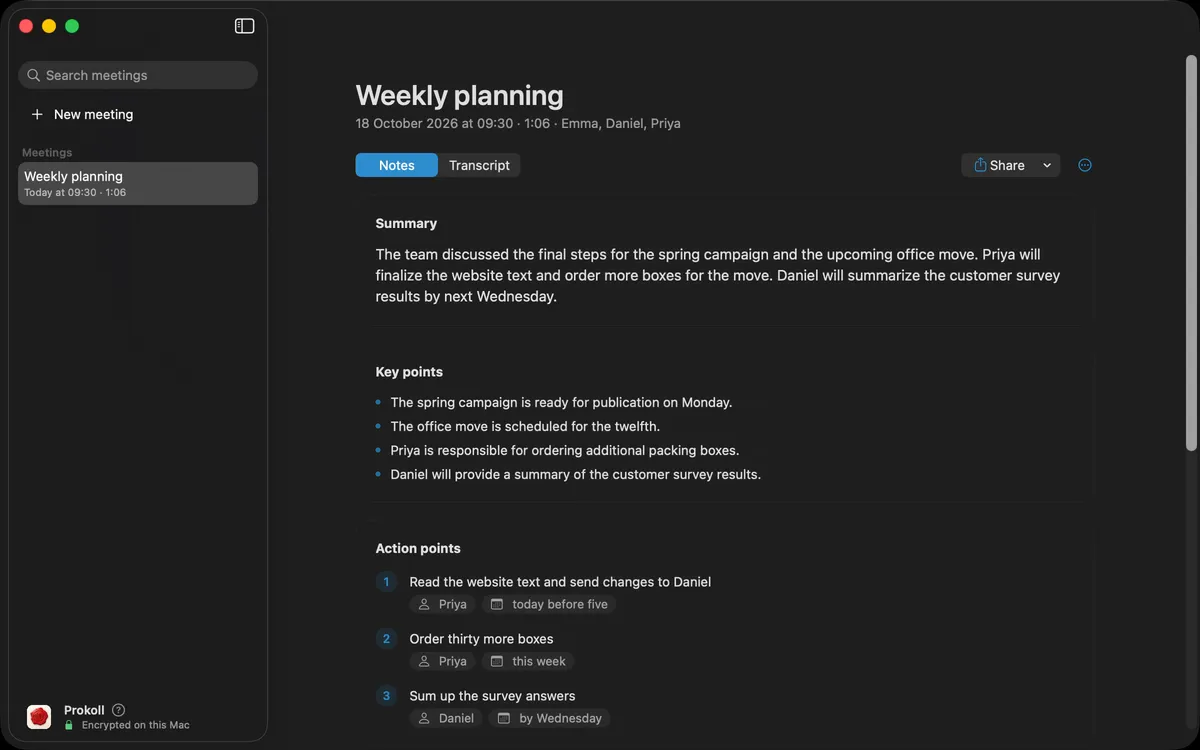
When the meeting ends, the notes are already there, without you writing a word.
A summary you can send
The whole meeting in a few lines, ready to paste into an email.
Action points with who and by when
Every task with the person who does it and the day it is due.
Notes by topic
Short notes on each topic, in the order they came up.
Who said what
Every voice gets its own name, all through the transcript.
Decisions and open questions
What was agreed, and what still needs an answer.
-
1
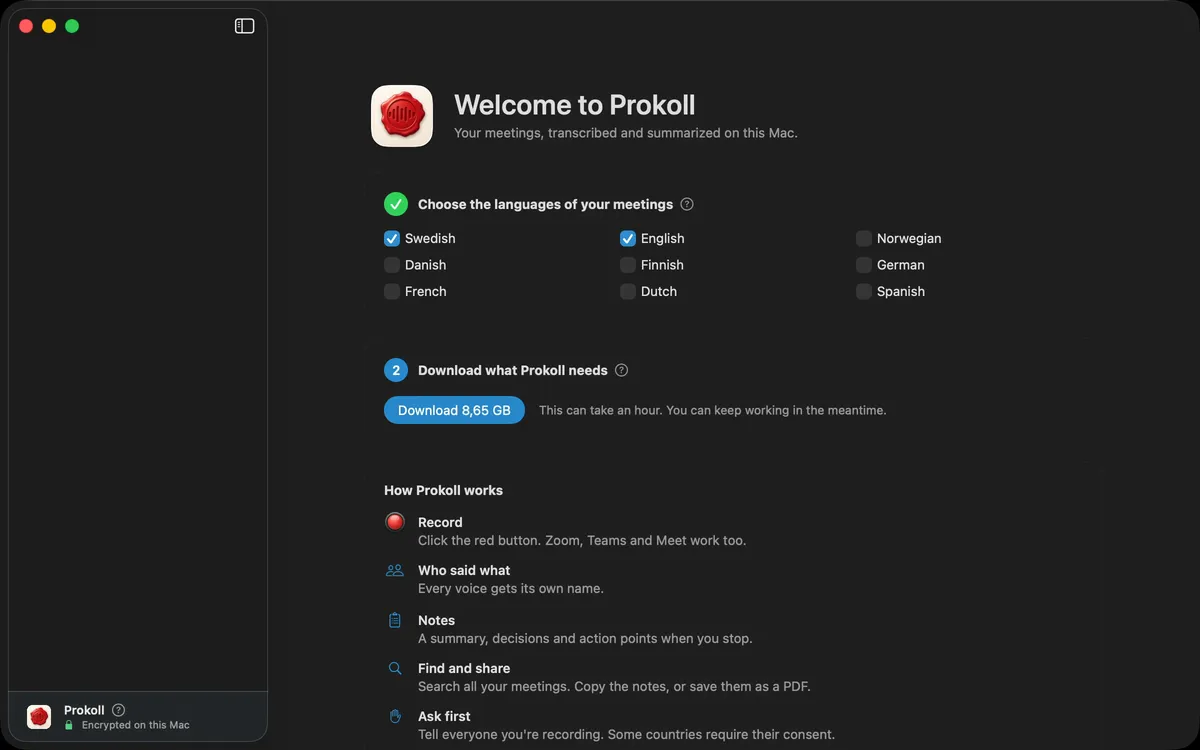
Choose your languages once
Pick the languages your meetings are in. Prokoll then downloads what it needs to work on your Mac: about 8 to 10 GB, depending on the languages. After that it works without the internet.
-
2
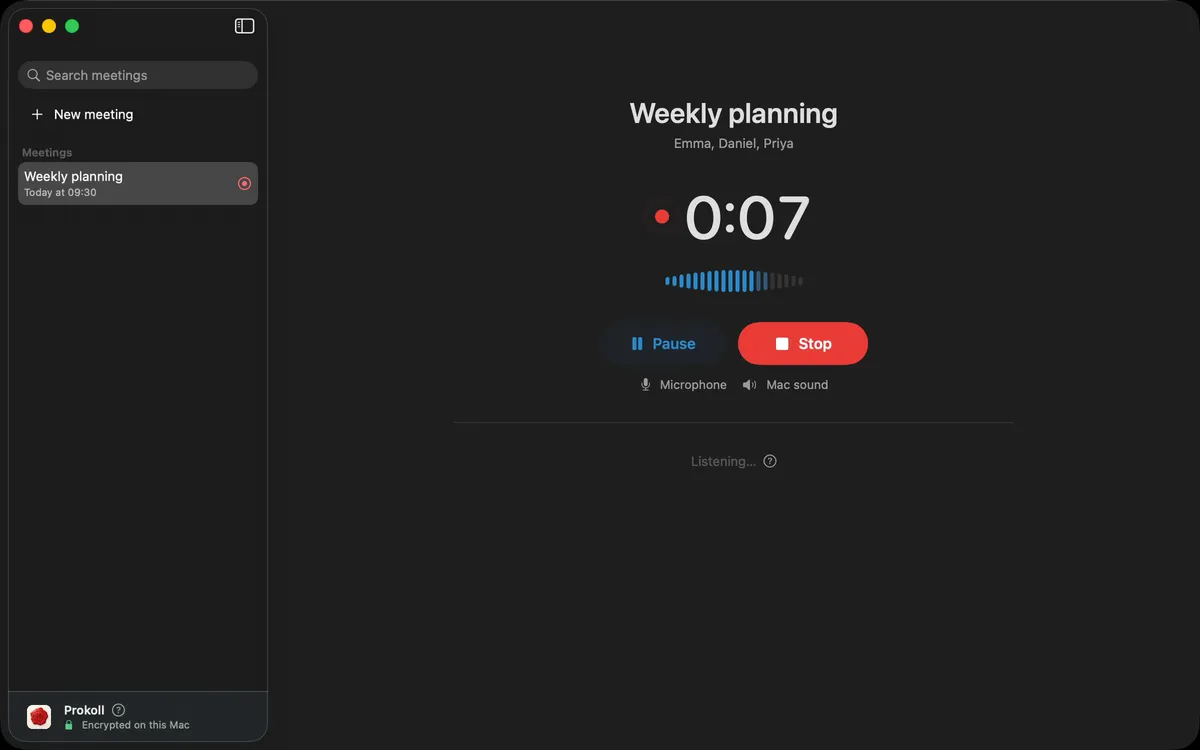
Start a meeting
If you like, add the people taking part: their names help Prokoll spell them right and tell the voices apart. Record your microphone, and for an online call the sound your Mac plays as well. You can also open an audio file or paste a transcript you already have.
-
3
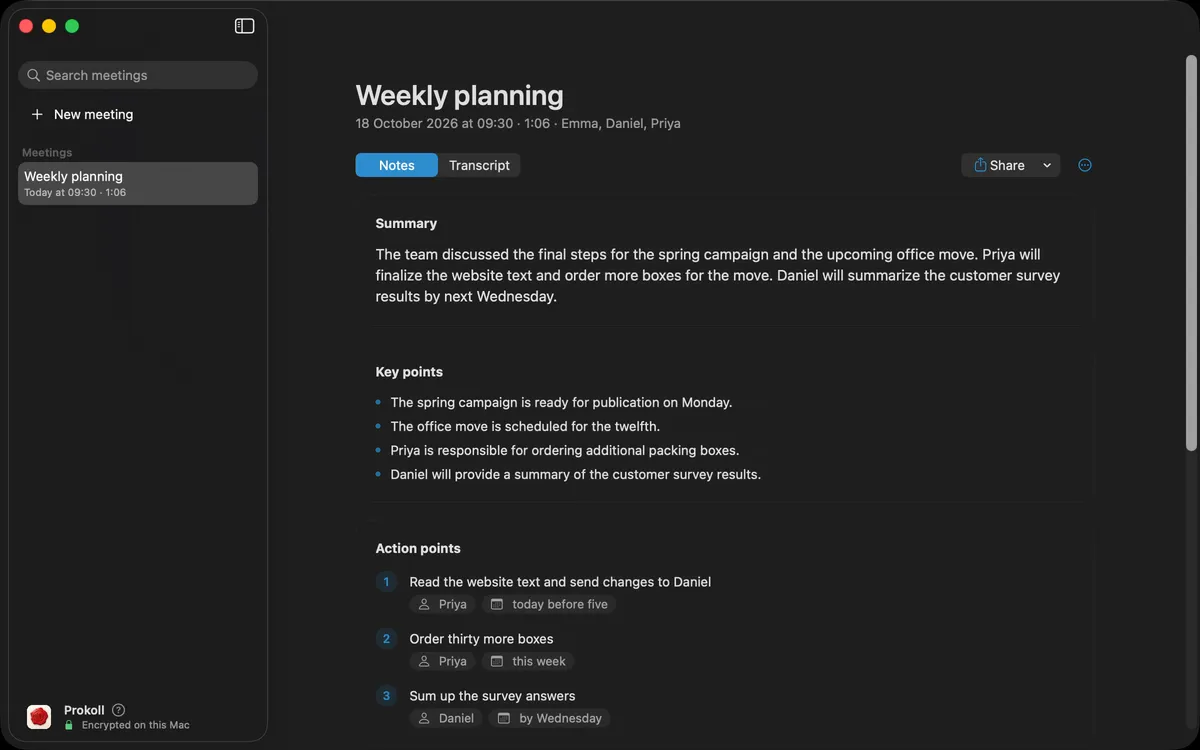
Watch the transcript appear
The transcript appears as people talk. When you stop, Prokoll works out who said what and writes the notes: a summary, the key points, decisions, action points with who does what and by when, and open questions.
-
4
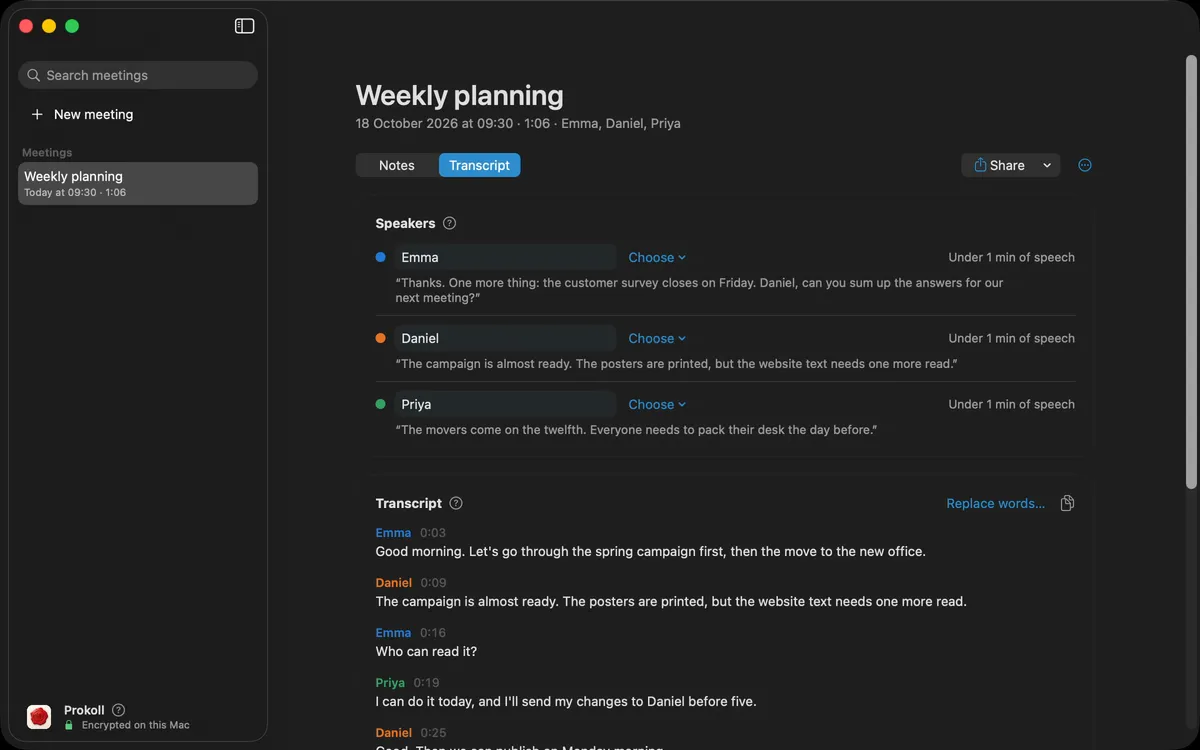
Name the speakers and fix mistakes
Give each voice a name once, and the transcript and the notes change with it. Correct a word or a name, and Prokoll spells it your way in every meeting after that.
-
5
Find and share your meetings
Search every meeting at once. Copy the summary or the action points into an email, or save the notes as a PDF.


Check before you share
Transcripts and notes are written by software and can be wrong or incomplete: a word, a name, a number, who said what. Read them before you rely on them or send them on.
Ask first
Tell everyone in the meeting that you are recording it and, where the law requires it, ask for their consent.
Made for the meetings you have
In-person meetings
Put your Mac on the table: no bot, no device to buy.
Confidential client meetings
For lawyers, accountants and advisers: nothing is uploaded.
Board and association minutes
A first draft of the minutes before the room is empty.